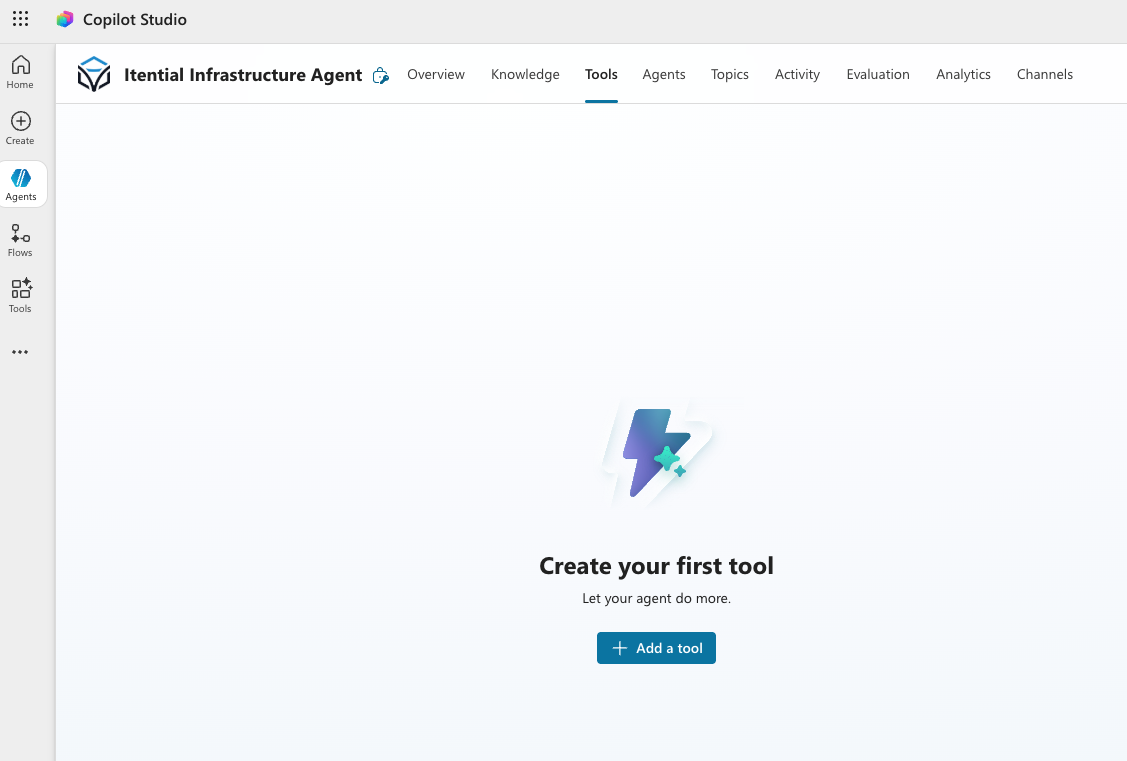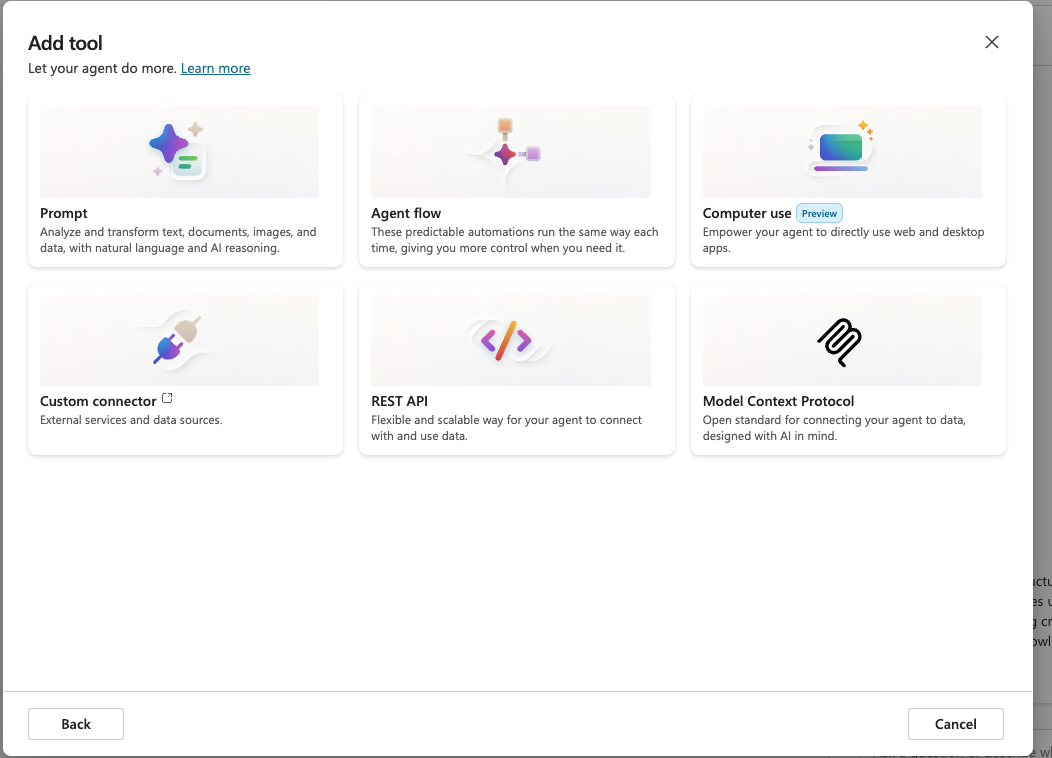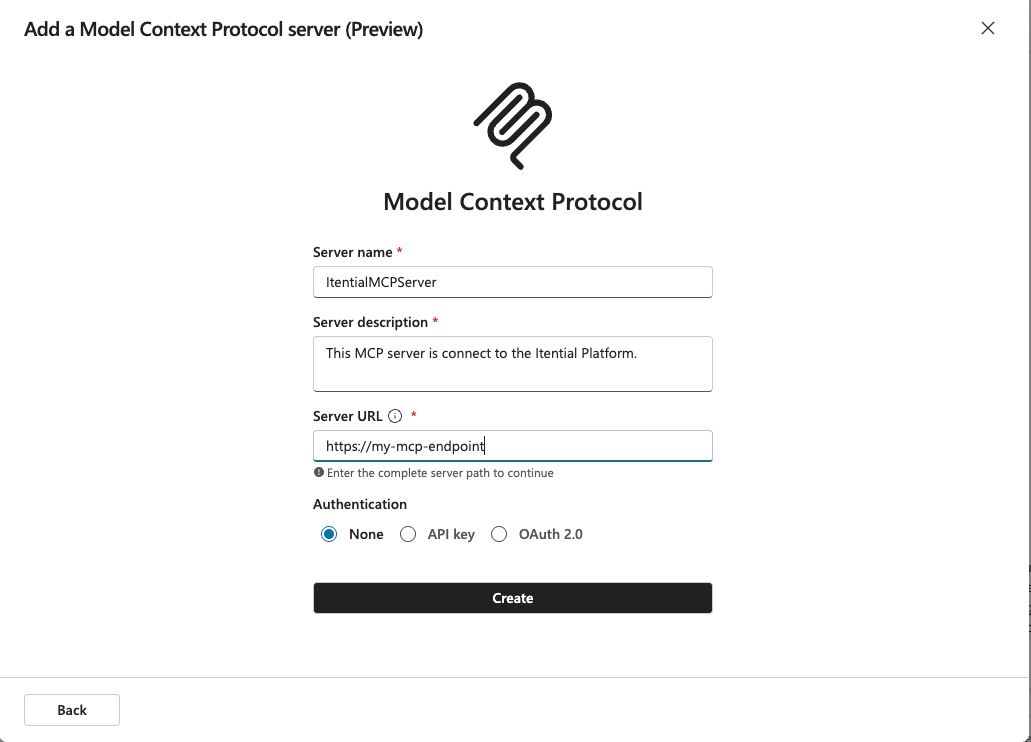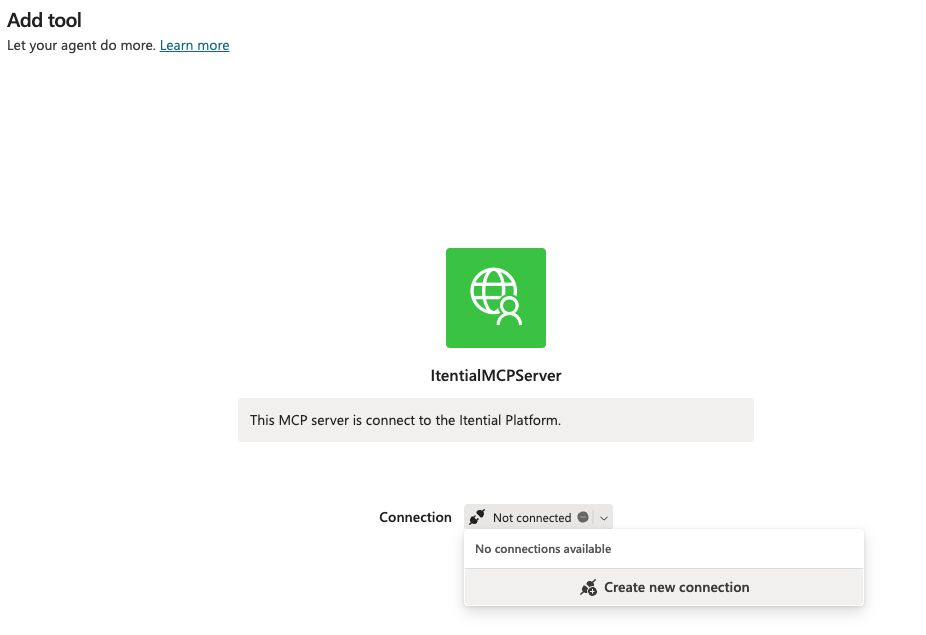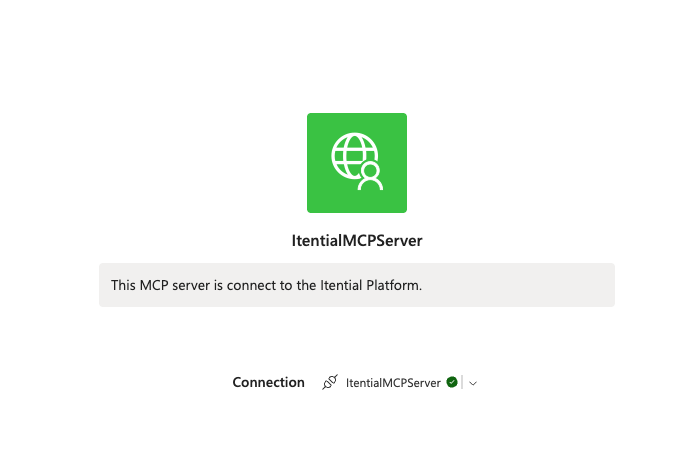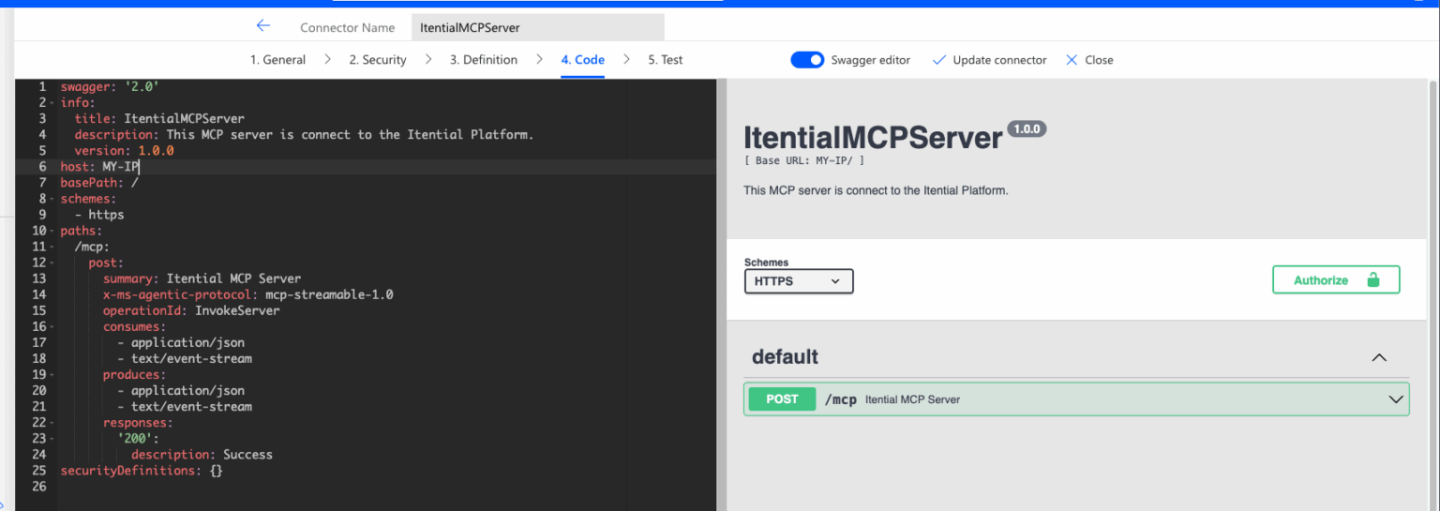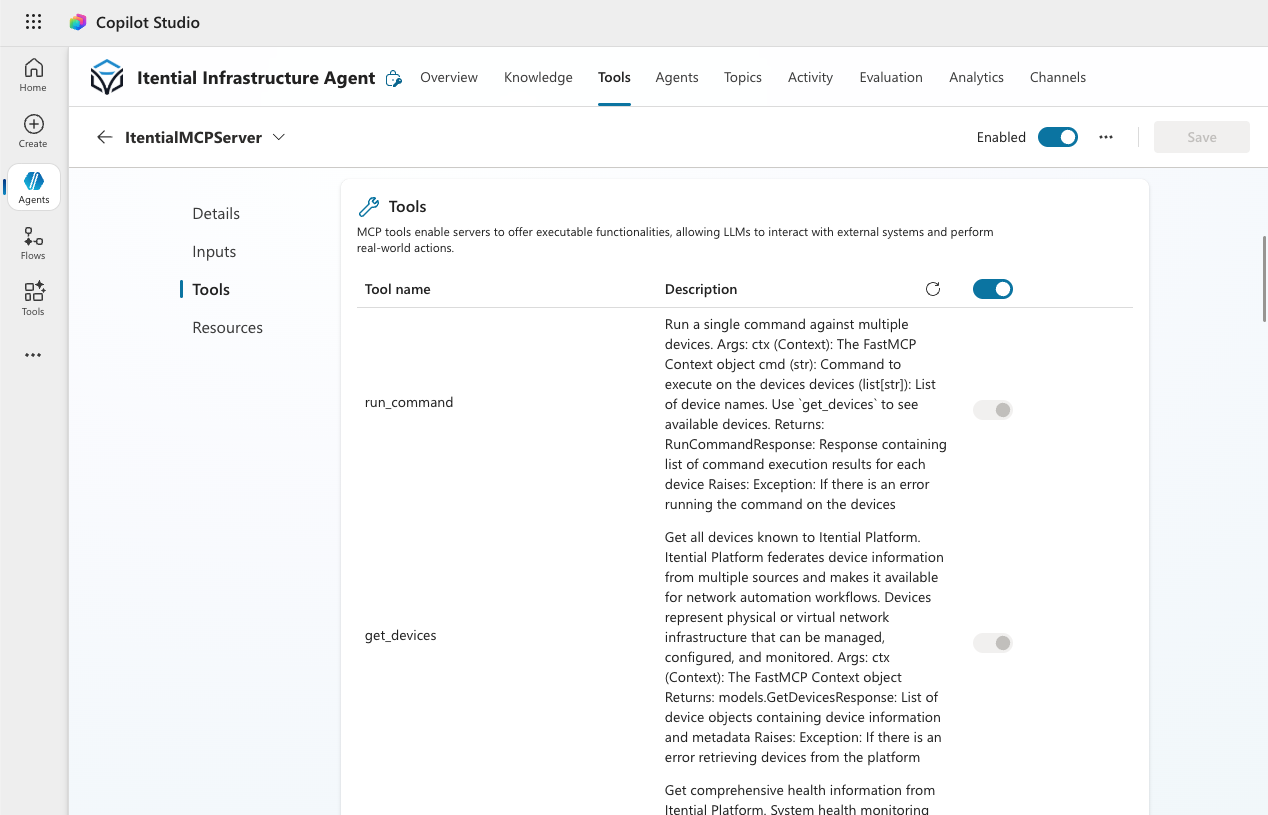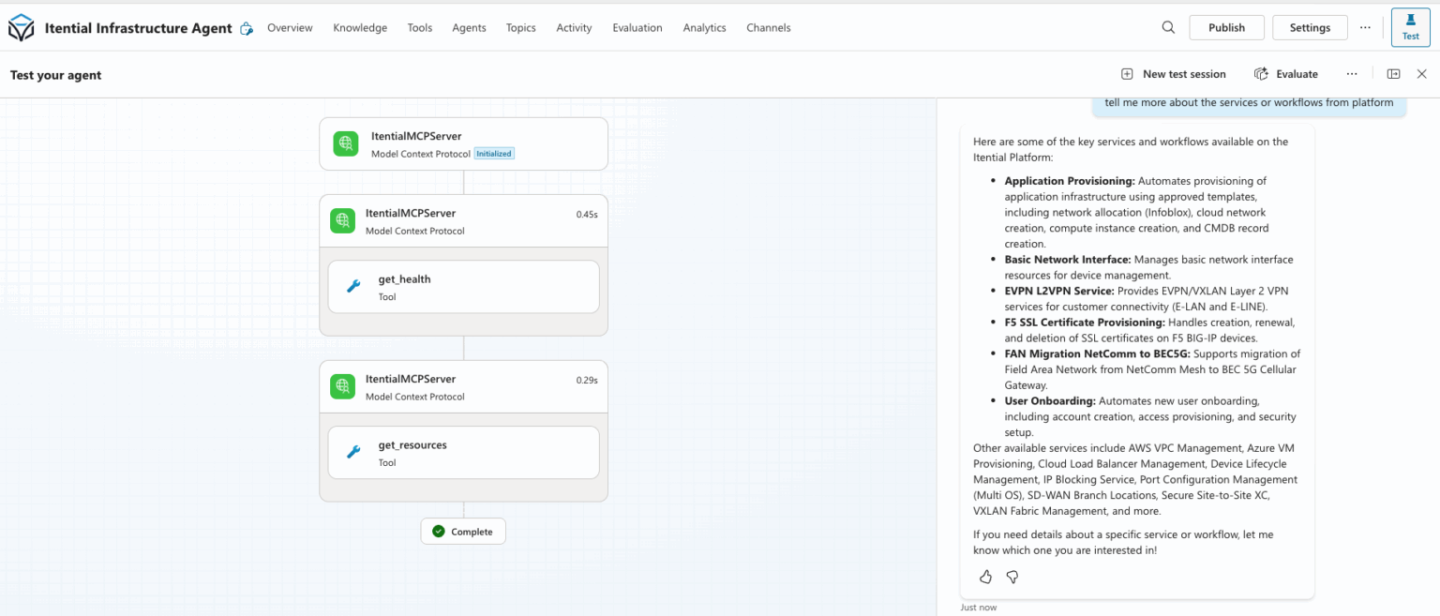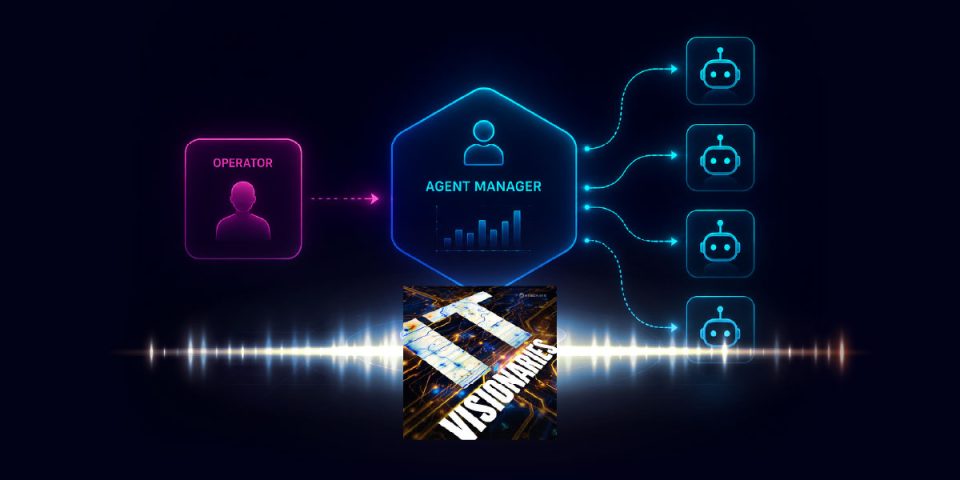
In this guide, you’ll learn how to set up the Itential MCP server, connect through multiple authentication methods, create a Copilot Agent, discover your MCP tools and test your agent.
[The Model Context Protocol (MCP) is rapidly becoming the universal standard for connecting AI assistants to real-world tools, APIs, and infrastructure. Thanks to its standardized JSON-RPC interface, MCP enables any AI agent to securely discover and use external capabilities without specialized integration logic. Itential’s MCP Server brings enterprise-grade network and infrastructure automation to MCP-aware AIs including Microsoft Copilot, Microsoft Copilot Studio/AI Studio, OpenAI, Anthropic, Google Gemini, and more. This guide walks you through end-to-end setup, including:
By the end, you’ll have a functioning Copilot agent that can manage infrastructure with natural language – safely and with full visibility.
MCP (Model Context Protocol) is an open standard introduced to standardize how AI assistants interact with external systems. It provides three foundational capabilities:
Executable functions exposed by an MCP server. Examples from Itential MCP:
Structured data access such as files, logs, or inventory payloads.
Reusable workflow templates an AI can use as tasks.
The Itential MCP Server provides the safe execution layer bridging AI and enterprise infrastructure. Itential handles execution, authentication, RBAC, and audit logging – while the AI provides reasoning and intent interpretation.
When a Copilot agent says: “Show me the devices in the Texas data center.”
Copilot → MCP → Itential Platform → Inventory results → Copilot formats for the user.
This separation of responsibilities keeps automation safe, repeatable, and governed.
Full installation steps are available here →
This guide keeps installation high-level to focus on Copilot integration. Authentication options supported:
(See the repository for complete configuration details.)
Microsoft added MCP support to Copilot AI Studio and Custom Copilot Agents starting in 2025. MCP servers can be added as external tool providers
Navigate to: https://copilotstudio.microsoft.com/
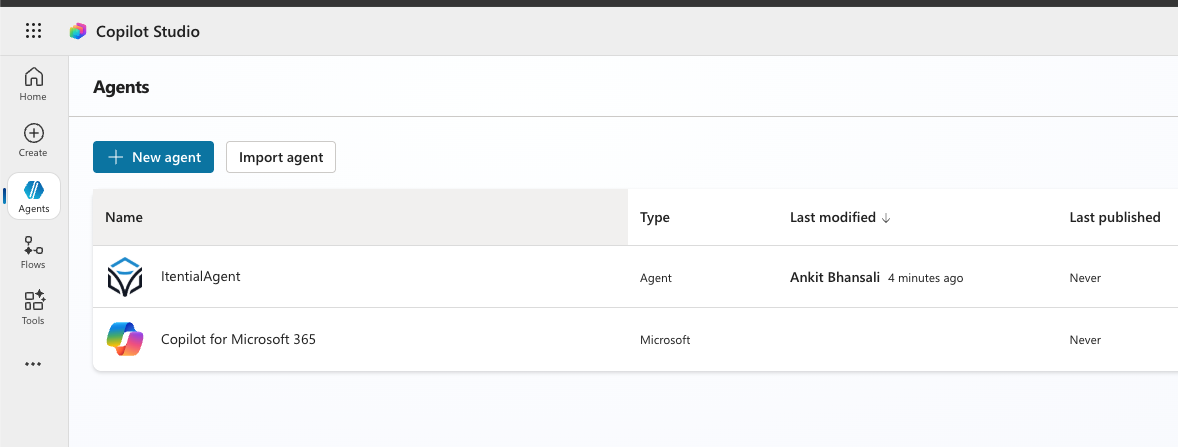
Create your agent
1. Go to Build → Copilot Agents → New Agent
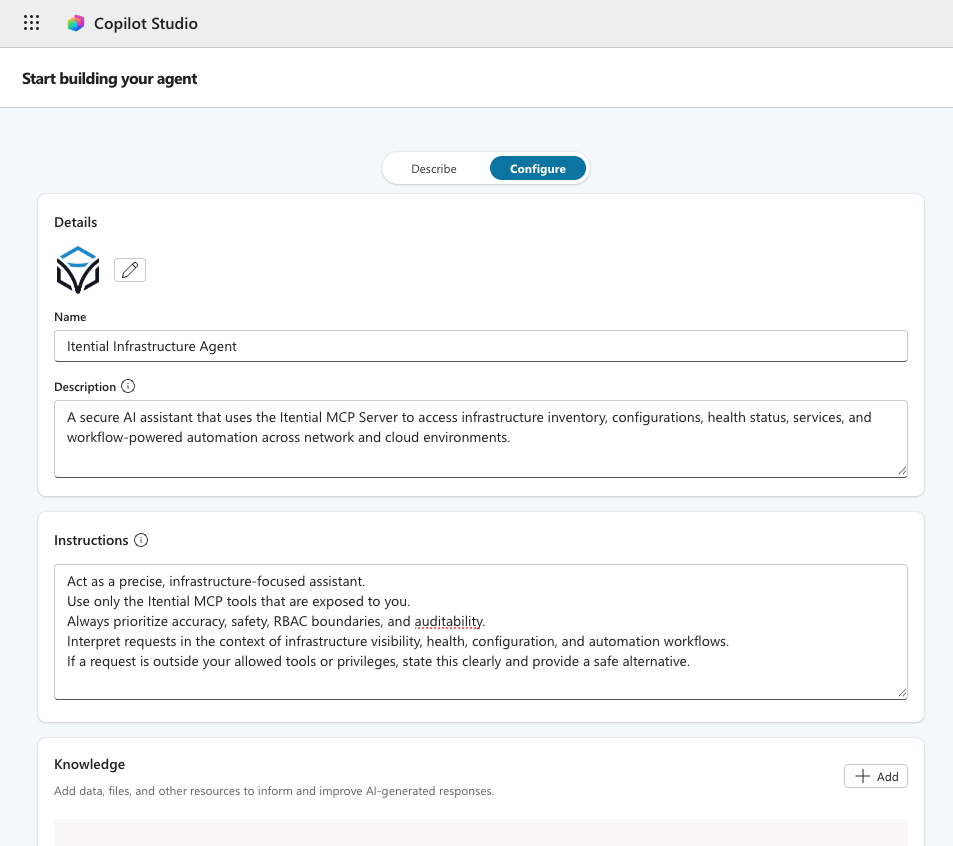
2. Give your agent a name (e.g., Infrastructure Assistant)
1. Go to tools section of agent.
2. Choose Custom Knowledge + MCP Tools.
3. In Tools, enable your MCP Server:
✔ itential-mcp
4. Choose Auto-discovery enabled (recommended)
Once saved, the Copilot agent will automatically pull from the Itential MCP server:
This means your agent instantly becomes infrastructure-aware.
Inside AI Studio, go to: Tools → MCP Tools → itential-mcp
You should now see a list such as:
Each tool shows:
Copilot automatically understands how to call them.
Once your Copilot agent is published, open the Test Console and try these.
Prompt: “Using Itential MCP, check the Itential platform health.” Expected:
Prompt: “Show me all devices in the Atlanta data center.”
Returns:
Prompt: “List all automation workflows available in Itential.”
Useful for:
Prompt: “Get the running configuration for router R1.”
Returns:
Prompt: “Launch AWS EC2 list service for us-west-1.”
Prompt: “Run the Port Turn Up workflow.”
Copilot will ask for missing parameters automatically.
You now have a fully integrated, MCP-powered Copilot agent that can:
This combination – MCP + Itential + Microsoft Copilot – creates a powerful and safe automation stack:
| Component | Role |
|---|---|
| Copilot | Natural language reasoning |
| MCP | Secure protocol for tool exposure |
| Itential Platform | Execution engine for automation |
With this foundation in place, your organization can begin building advanced AI-driven operations at scale.
See how Itential connects AI reasoning to governed execution across your entire infrastructure.